

Page 2 of 4
Helpful Tips from IT
Technology surrounds us every day at home and work. While new technology can be confusing or frustrating, it can also be very useful and enjoyable too. We are here to share with you some useful tips that may make your daily routines a bit easier.
1) Password Reset – Forgetting your password can be a frustrating experience. Once you enter your password incorrectly too many times, you are locked out of your account for 30 minutes. This requires calling IT for help or moving on to another task.- Tip: By visiting https://passwordreset, while on the County’s network, you can sign up to manually reset your own password. You must enroll in this service before you can use it. After you enroll, you can go through the process of unlocking your account or changing your password on your own. This tool is currently only for resetting your Active Directory account (computer and email log on information). Enroll today so you have access to this valuable service when you need it!
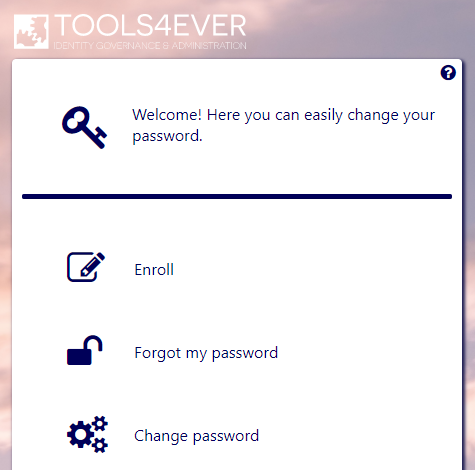
Password reset Home Page
2) Make organizing meetings easier – Utilizing the Calendar in Outlook will not only make your day more efficient and organized, but also helps when others are trying to schedule meetings with you. By default, no one can see the specific events on your calendar; they can only see the blocks of time in which you are free or busy. This information is very useful in the ‘Scheduling Assistant’ view in Outlook, showing the availability of attendees when scheduling a meeting. The assistant will also suggest meeting times that work the best for everyone. We recommend using Scheduling Assistant because it will not only reduce the amount of e-mails needed to set up a meeting, it will also help keep your calendar more organized.
- Tip: Follow these steps to use Scheduling Assistant in Outlook 2016:
- 1. Create a 'New Meeting' and add your attendees.
2. Click the 'Scheduling Assistant' icon which looks like a calendar with a clock in the corner.
3. View everyone's availability along with the rooms that are available for reserving. You will also see the suggested times that work best for everyone
4. Schedule your meeting!

Scheduling Assistant button
3) Voting in e-mails – Ever send an e-mail with a direct question to several people, and wish you had a way to receive a quick Yes/No or other type of vote? You can! Voting in e-mails is a great way to quickly tally multiple responses in a group to a specific question. Now picking a spot and planning lunch with co-workers is a breeze!
- Tip: Follow these steps to take a vote through e-mail (Currently you can only insert the 'Voting Buttons' using the desktop application of Outlook):
- 1. Create a new e-mail in Outlook 2016.
2. Select the 'Options' tab at the top of the e-mail.
3. Select 'Use Voting Buttons' and choose from the built-in options, or create your own.
4. Simply add your question to the subject line or body of the e-mail and you are on your way to vote!
5. The recipients will receive a specially formatted e-mail that lets them choose an option and respond to you.
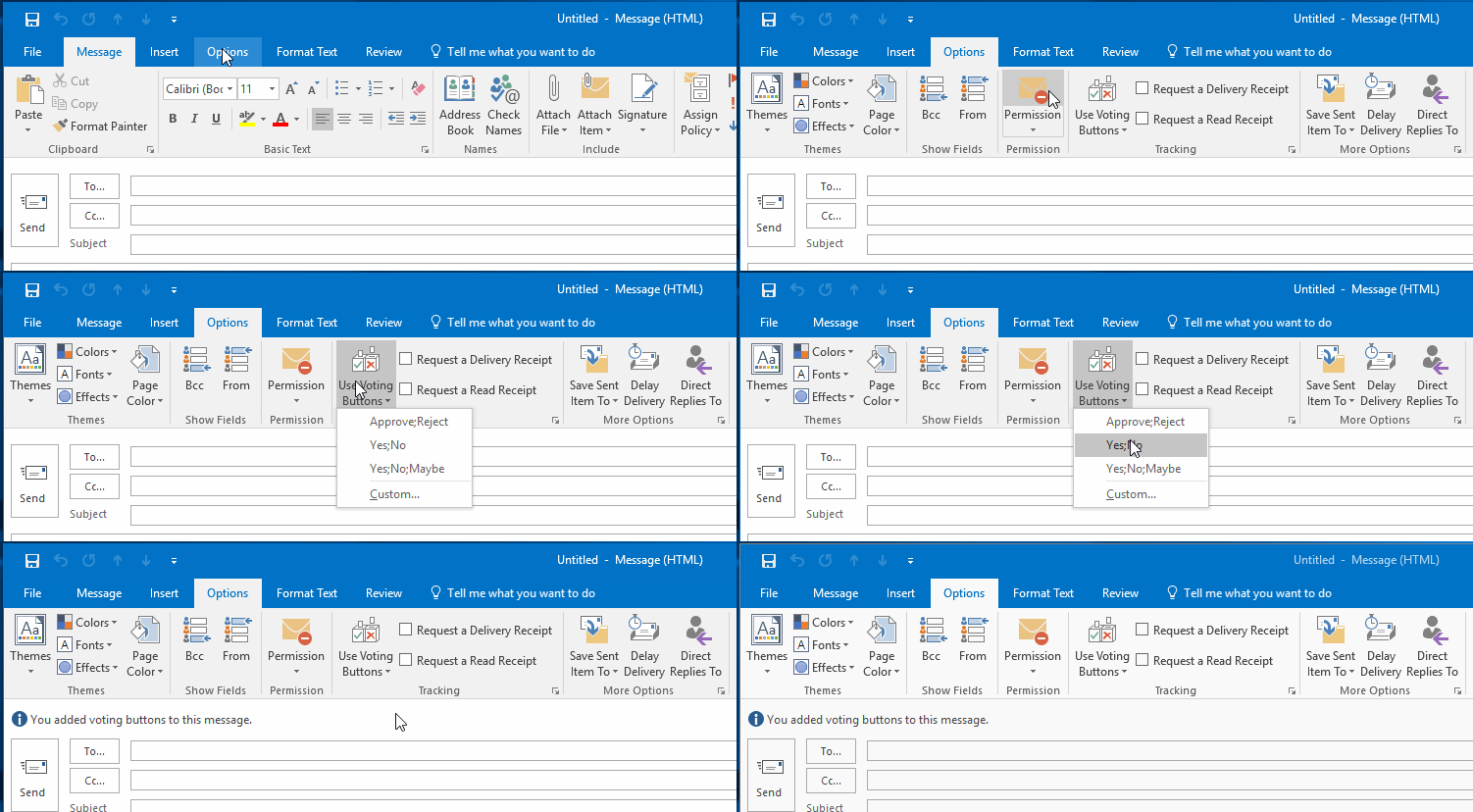
How to use Voting Buttons
4) OneNote – OneNote is a freeform notetaking application that really shines with the power of Office 365 behind it. While OneNote has been a part of Office since 2003, the syncing and collaborative nature of it working with Office 365 allows teams to work together when taking notes and documenting. Notebooks are organized into sections, and then pages within each section. With it being a freeform application, you can make these sections and pages represent any structure you want. You can also write, draw, and embed content like pictures anywhere in a note. All of this content is searchable as well, both in OneNote or through Office 365 at www.office.com!
- Tip: Follow these steps to create a Notebook:
- 1. Launch OneNote from your start menu.
2. Go to 'File' and select 'New.'
3. Select saving the notebook to your 'OneDrive- County of Henrico VA' account. This allows your notebook to sync to all of your devices.
4. Start taking notes!
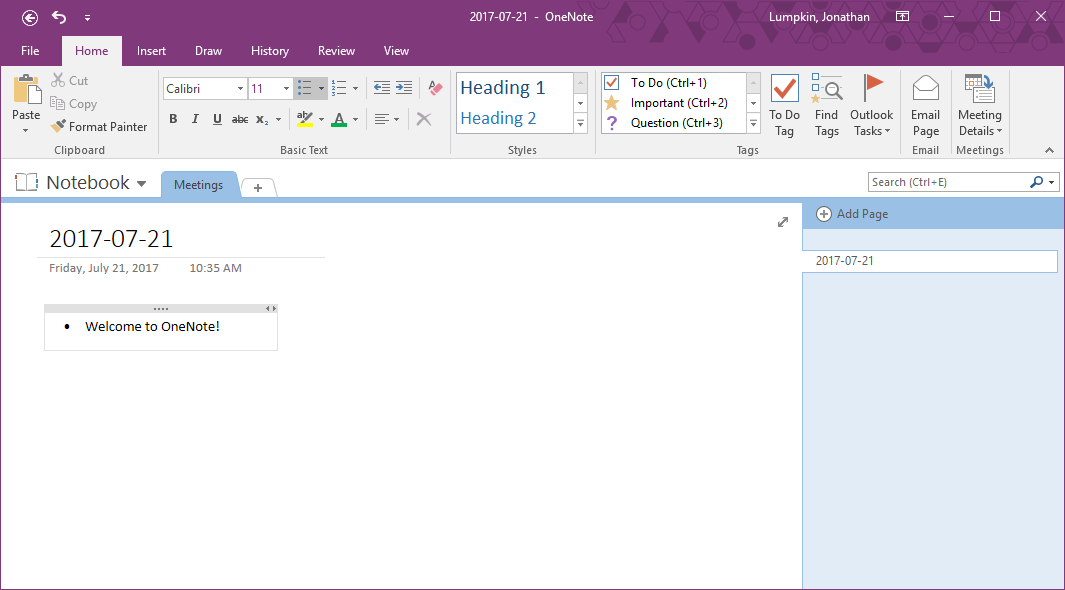
OneNote Notebook
As always, if you have any questions or would like to know more about any of the tips above, please send us an e-mail at [email protected].